Apple Pay/Google Pay
BBMSL Online Payment Service supports Apple Pay in iOS apps and Google Pay in Android apps. You can process wallet payments natively without using the Hosted Checkout Page. Before starting the integration, register your app in Apple Developer Portal and Google Play Console.
Apple Pay
- Subscribe to the Apple Developer Programme before integrating Apple Pay with the Direct Model.
- Follow these instructions to create a merchant identifier.
- Send the
Merchant Identifierto your relationship manager. BBMSL returns a.csrfile for uploading to the Apple Pay Payment Processing Certificate section.
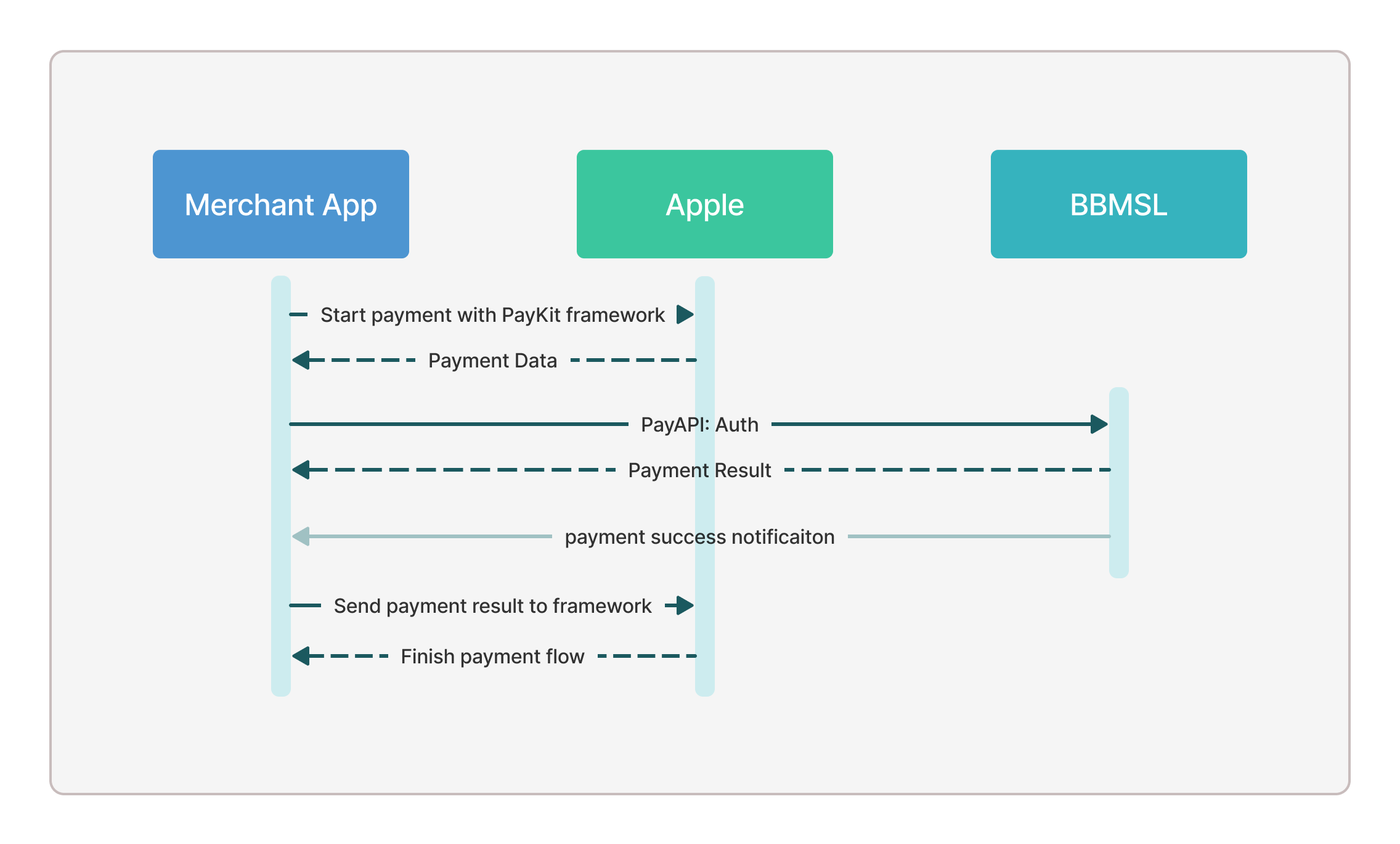
What you do: Integrate with Apple PayKit to collect tokenized payment card data after the customer authorizes the payment, then pass the data to the PayAPI Auth for processing.
Expected result: If the PayAPI response responseCode is 0000, the payment is complete.
Next step: Call the completion block to dismiss the payment view and navigate the customer to a result screen.
The diagram below illustrates how the system works for Apple Pay.
Before implementation, enable the Apple Pay Capability in your Xcode project. The available merchant identifiers are shown by clicking the refresh button — select the one you passed to BBMSL.
Apple provides a sample app for reference. This section focuses on the details specific to integrating with BBMSL Online Payment Service.
Check whether the customer's iOS device supports Apple Pay or has Apple Pay set up. Show the payment button if supported, or prompt the customer to set up Apple Pay otherwise.
static let supportedNetworks: [PKPaymentNetwork] = [
    .masterCard,
    .visa
]

class func applePayStatus() -> (canMakePayments: Bool, canSetupCards: Bool) {
    return (PKPaymentAuthorizationController.canMakePayments(),
            PKPaymentAuthorizationController.canMakePayments(usingNetworks: supportedNetworks))
}

let result = PaymentHandler.applePayStatus()
var button: UIButton?

if result.canMakePayments {
    button = PKPaymentButton(paymentButtonType: .book, paymentButtonStyle: .black)
    button?.addTarget(self, action: #selector(ViewController.payPressed), for: .touchUpInside)
} else if result.canSetupCards {
    button = PKPaymentButton(paymentButtonType: .setUp, paymentButtonStyle: .black)
    button?.addTarget(self, action: #selector(ViewController.setupPressed), for: .touchUpInside)
}
After confirming Apple Pay support, construct a payment request and present the payment view controller when the button is pressed.
You must register the delegate by paymentController?.delegate = self to receive the payment result callback later.
paymentController = PKPaymentAuthorizationController(paymentRequest: paymentRequest)
paymentController?.delegate = self
paymentController?.present(completion: { (presented: Bool) in
    if presented {
        debugPrint("Presented payment controller")
    } else {
        debugPrint("Failed to present payment controller")
        self.completionHandler(false)
    }
})
When the customer authorizes the payment, the system calls the handler below to return the payment card data. Pass the data to BBMSL through PayAPI Auth. If the response responseCode is 0000, the payment is complete. A sample code for parsing the Apple Pay payment data and requesting PayAPI is shown below.
func paymentAuthorizationViewController(_ controller: PKPaymentAuthorizationViewController, didAuthorizePayment payment: PKPayment, handler completion: @escaping (PKPaymentAuthorizationResult) -> Void) {
        var status = PKPaymentAuthorizationStatus.success

        //  create payapi request
        var json = JSON()
        json["currency"] = "USD"
        json["amount"] = 50
        json["merchantId"] = 3
        json["merchantReference"] = "UNIQUE_MERCHANT_REF"
        json["notifyUrl"] = "https://www.bbmsl.com/notify"

        var priceData = JSON()
        priceData["name"] = "Book"
        priceData["unitAmount"] = 50

        var lineItem = JSON()
        lineItem["priceData"] = priceData
        lineItem["quantity"] = 1

        json["lineItems"] = [lineItem]

        let jsonString = json.rawString()?.components(separatedBy: .whitespacesAndNewlines).joined()

        //  sign the request json string
        let signature = jsonString?.signWithKey(key: privateKey)


        //  parse data from apple pay paymentData
        let cardType = payment.token.paymentMethod.network?.rawValue.toCardType()
        let paymentData = try! JSON(data: payment.token.paymentData)

        let applePay: Parameters = ["cardType": cardType,
                                    "data": paymentData["data"].string,
                                    "ephemeralPublicKey": paymentData["header"]["ephemeralPublicKey"].string,
                                    "publicKeyHash": paymentData["header"]["publicKeyHash"].string,
                                    "signature": paymentData["signature"].string,
                                    "transactionId": paymentData["header"]["transactionId"].string,
                                    "version": paymentData["version"].string]

        let params: Parameters = ["request": jsonString,
                                  "signature": signature,
                                  "applePay": applePay]

        let headers: HTTPHeaders = ["Content-Type": "application/json"]
        AF.request("\(BBMSL_PAYAPI_BASE_URL)direct/auth", method: .post, parameters: params, encoding: JSONEncoding.default, headers: headers) { urlRequest in
            urlRequest.timeoutInterval = 60
            urlRequest.allowsConstrainedNetworkAccess = false
        }.responseJSON { response in
            switch response.result {
            case .success(let value):
                let rspJson = JSON(value)
                if (rspJson["responseCode"].string == "0000") {
                    status = .success
                }else{
                    status = .failure
                }
            case let .failure(error):
                status = .failure
            }
            self.paymentStatus = status
            completion(PKPaymentAuthorizationResult(status: status, errors: errors))
        }
}
For Apple Pay, you must request the PayAPI before you call the completion block, as the result will be reflected on the UI to customers to indicate the payment result.
Once the completion block is called, dismiss the payment view controller.
func paymentAuthorizationViewControllerDidFinish(_ controller: PKPaymentAuthorizationViewController) {
    controller.dismiss(animated: true, completion: nil)
}
Navigate the customer to a result screen after the payment view is dismissed; otherwise, the app remains on the payment page and the customer could attempt the same payment again.
Google Pay
Contact your relationship manager to obtain a gatewayMerchantId.
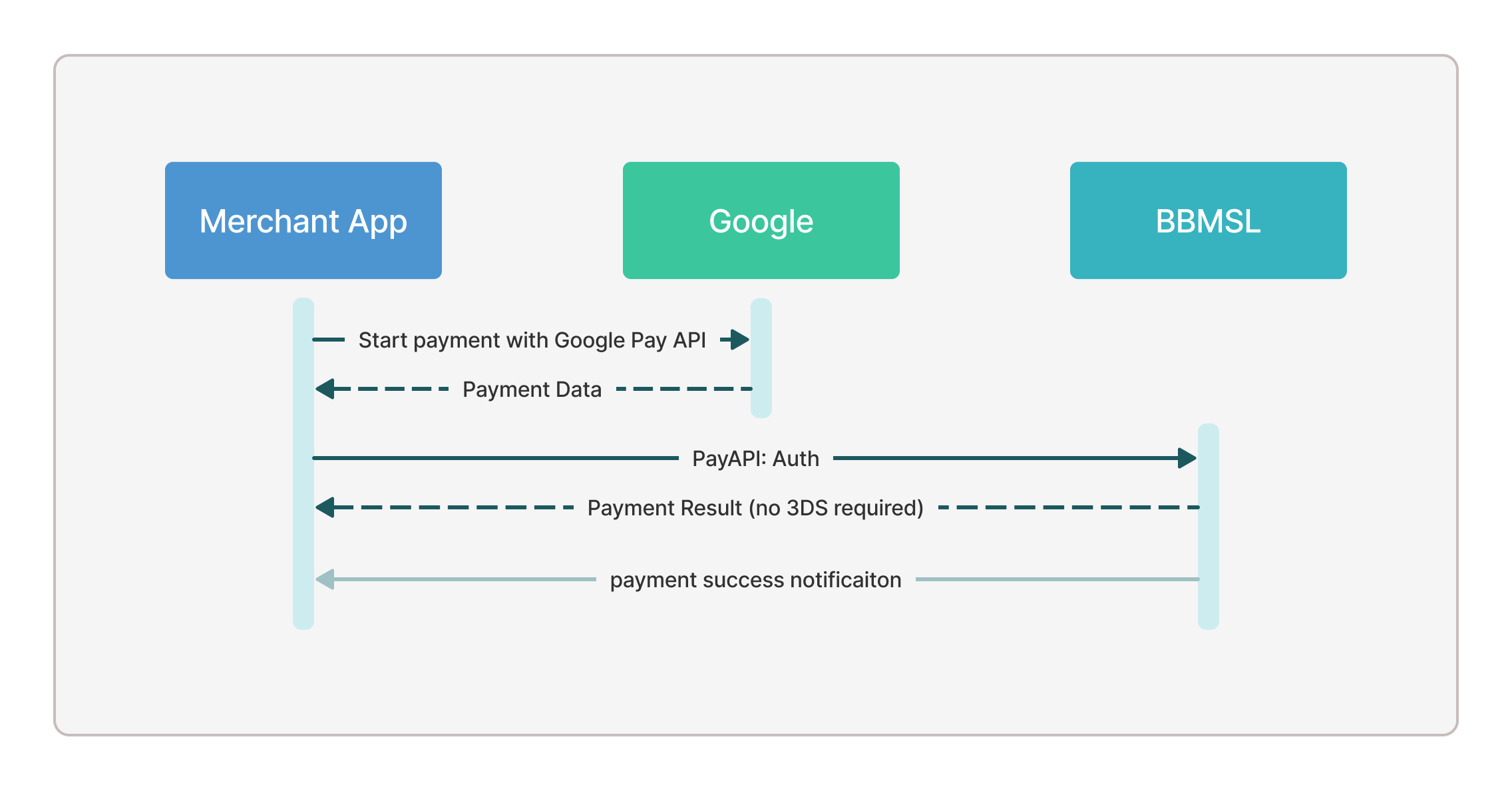
What you do: Use the Google Pay API to securely collect the customer's payment data, then submit it to BBMSL through PayAPI Auth to complete the payment.
Expected result: If the PayAPI response responseCode is 0000, the payment is complete.
Next step: Handle payment success and failure in your app UI — Google Pay dismisses the payment view once payment data is collected, so you must show result feedback yourself.
The diagram below shows the flow for using Google Pay in an Android app.
Google provides a demo app and setup guide to walk you through the full implementation.
Define a payment token that encrypts the customer's card data using the gatewayMerchantId provided by BBMSL.
- Kotlin
- Java
  private fun gatewayTokenizationSpecification(): JSONObject {
    return JSONObject().apply {
      put("type", "PAYMENT_GATEWAY")
      put("parameters", JSONObject(mapOf(
      "gateway" to "worldpay",
      "gatewayMerchantId" to "BBMSL_GATEWAY_MERCHANT_ID")))
      }
  }
  private static JSONObject getGatewayTokenizationSpecification() throws JSONException {
    return new JSONObject() {{
      put("type", "PAYMENT_GATEWAY");
      put("parameters", new JSONObject() {{
        put("gateway", "worldpay");
        put("gatewayMerchantId", "BBMSL_GATEWAY_MERCHANT_ID");
        }});
    }};
  }
BBMSL Online Payment Service uses Worldpay as the payment service provider for Google Pay. Use worldpay as the value of the gateway key.
Also define the supported card networks and authentication methods.
- Kotlin
- Java
  private val allowedCardNetworks = JSONArray(listOf(
    "MASTERCARD",
    "VISA"
    ))

  private val allowedCardAuthMethods = JSONArray(listOf(
    "PAN_ONLY",
    "CRYPTOGRAM_3DS"
    ))
  private static JSONArray getAllowedCardNetworks() {
    return new JSONArray()
      .put("MASTERCARD")
      .put("VISA");
  }

  private static JSONArray getAllowedCardAuthMethods() {
    return new JSONArray()
      .put("PAN_ONLY")
      .put("CRYPTOGRAM_3DS");
  }
Construct a payment request object and present the payment activity. The payment process is asynchronous; use LOAD_PAYMENT_DATA_REQUEST_CODE to retrieve the result in the callback. Reference code from the sample app is shown below.
- Kotlin
- Java
val paymentDataRequestJson = PaymentsUtil.getPaymentDataRequest(priceCents)
if (paymentDataRequestJson == null) {
  Log.e("RequestPayment", "Can't fetch payment data request")
  return
}
val request = PaymentDataRequest.fromJson(paymentDataRequestJson.toString())

if (request != null) {
  AutoResolveHelper.resolveTask(
    paymentsClient.loadPaymentData(request), this, LOAD_PAYMENT_DATA_REQUEST_CODE)
}
Optional<JSONObject> paymentDataRequestJson = PaymentsUtil.getPaymentDataRequest(priceCents);
if (!paymentDataRequestJson.isPresent()) {
  return;
}

PaymentDataRequest request =
  PaymentDataRequest.fromJson(paymentDataRequestJson.get().toString());

if (request != null) {
  AutoResolveHelper.resolveTask(
    paymentsClient.loadPaymentData(request),
    this, LOAD_PAYMENT_DATA_REQUEST_CODE);
}
Retrieve the payment data and result in the onActivityResult callback.
- Kotlin
- Java
public override fun onActivityResult(requestCode: Int, resultCode: Int, data: Intent?) {
  when (requestCode) {
  // Value passed in AutoResolveHelper
    LOAD_PAYMENT_DATA_REQUEST_CODE -> {
      when (resultCode) {
      RESULT_OK ->
        data?.let { intent ->
          PaymentData.getFromIntent(intent)?.let(::handlePaymentSuccess)
        }

      RESULT_CANCELED -> {
      // The customer cancelled the payment attempt
      }

      AutoResolveHelper.RESULT_ERROR -> {
        AutoResolveHelper.getStatusFromIntent(data)?.let {
          handleError(it.statusCode)
        }
      }
    }

    // Re-enables the Google Pay payment button.
    googlePayButton.isClickable = true
    }
  }
}
@Override
public void onActivityResult(int requestCode, int resultCode, Intent data) {
  switch (requestCode) {
    // value passed in AutoResolveHelper
    case LOAD_PAYMENT_DATA_REQUEST_CODE:
      switch (resultCode) {

        case Activity.RESULT_OK:
          PaymentData paymentData = PaymentData.getFromIntent(data);
          handlePaymentSuccess(paymentData);
          break;

        case Activity.RESULT_CANCELED:
        // The user cancelled the payment attempt
          break;

        case AutoResolveHelper.RESULT_ERROR:
          Status status = AutoResolveHelper.getStatusFromIntent(data);
          handleError(status.getStatusCode());
          break;
      }

    // Re-enables the Google Pay payment button.
    googlePayButton.setClickable(true);
  }
}
When resultCode == RESULT_OK, collect the payment data and submit it to BBMSL through PayAPI Auth. If the response responseCode is 0000, the payment is complete. Sample code for parsing the Google Pay paymentData and calling PayAPI is shown below.
private fun requestPayApi(paymentData: PaymentData) {
    val gatewayApi = RetrofitHelper.getInstance(BBMSL_PAYAPI_BASE_URL)
        .create(GatewayApi::class.java)

    val jsonObject = JSONObject()
    jsonObject.put("currency", "USD")
    jsonObject.put("amount", 50)
    jsonObject.put("merchantId", 3)
    jsonObject.put("merchantReference", "UNIQUE_MERCHANT_REF")
    jsonObject.put("notifyUrl", "https://www.bbmsl.com/notify")

    val priceData = JSONObject()
    priceData.put("name", "Book")
    priceData.put("unitAmount", 50)

    val lineItem = JSONObject()
    lineItem.put("priceData", priceData)
    lineItem.put("quantity", 1)

    val lineItems = JSONArray()
    lineItems.put(lineItem)
    jsonObject.put("lineItems", lineItems)

    val jsonString = jsonObject.toString().replace("[\\n\t ]".toRegex(), "")
    val signature = SignatureUtils.sign(jsonString, privateKey, true)

    val json = mutableMapOf<String, Any>()
    json["request"] = jsonString
    json["signature"] = signature ?: ""

    val paymentMethodData = JSONObject(paymentData.toJson()).getJSONObject("paymentMethodData")
    val tokenJsonString = paymentMethodData.getJSONObject("tokenizationData").getString("token")
    val tokenJsonObject = JSONObject(tokenJsonString)

    val googlePayMap = mutableMapOf<String, Any>()
    googlePayMap["cardType"] = paymentMethodData.getJSONObject("info").getString("cardNetwork").toCardType()
    googlePayMap["protocolVersion"] = tokenJsonObject.getString("protocolVersion")
    googlePayMap["signature"] = tokenJsonObject.getString("signature")
    googlePayMap["signedMessage"] = tokenJsonObject.getString("signedMessage")
    json["googlePay"] = googlePayMap

    GlobalScope.launch {
        try {
            val result = gatewayApi.sendAuth(Gson().toJsonTree(json).asJsonObject)
            val resultString = result.body()?.toString() ?: "{}"
            val responseJson = JSONObject(resultString)
            if (responseJson.getString("responseCode") == "0000") {
                //  payment success
            } else {
                //  payment failed
            }
        } catch (e: Exception) {
            //  payment failed
        }
    }
}
The sample code used Retrofit library for HTTP request, but any other libraries will do the same.
The paymentData.paymentMethodData.tokenizationData.token is returned as JSON string from Google Pay API, you have to parse it to JSON object to retrieve the JSON value before posting to the PayAPI.
Unlike Apple Pay, Google Pay dismisses the payment view once payment data is collected. Handle payment failure scenarios in your app UI.